Blockbench for Hytale: The Official 3D Modeling Tool for Content Creation
Blockbench for Hytale has emerged as the official modeling solution that's transforming how creators design custom content for Hypixel Studios' voxel sandbox game. This free, powerful 3D editor replaces Hytale's internal tools and brings professional-grade model creation to anyone interested in modding, whether you're crafting your first simple block or designing complex animated characters.
What Makes Blockbench Perfect for Hytale?
Blockbench Hytale integration represents a major milestone in accessible game development. Unlike traditional 3D modeling software that requires years of training, Blockbench's voxel-focused approach matches Hytale's aesthetic perfectly while remaining intuitive enough for complete beginners.
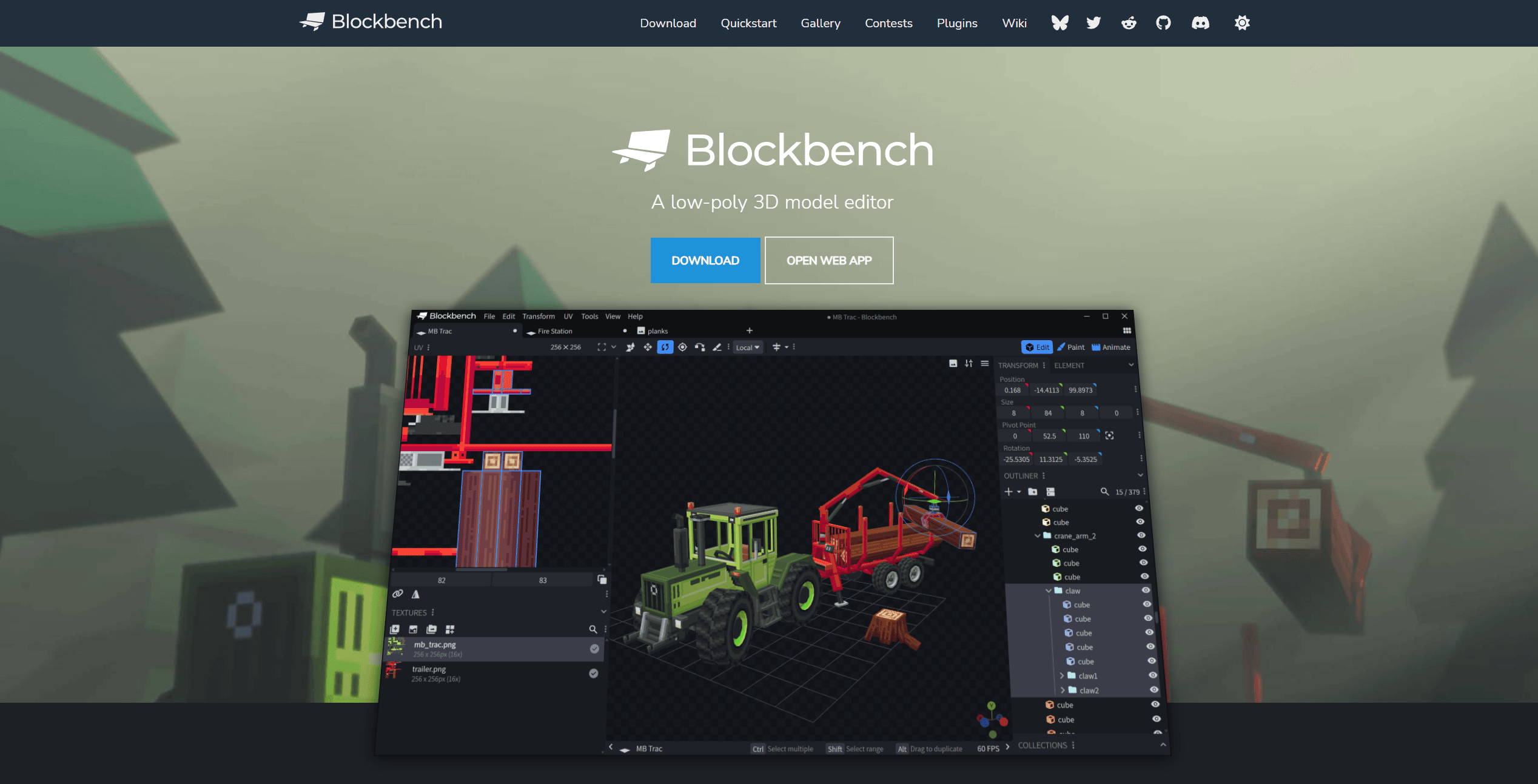
The software provides everything needed for Hytale content creation in one package: 3D modeling tools, texture painting capabilities, and a complete animation system. Most importantly, Hypixel Studios officially endorses Blockbench and developed a dedicated plugin that ensures your creations export in the exact format Hytale's engine expects.
Why Hypixel Chose Blockbench
Hypixel Studios made the strategic decision to adopt Blockbench rather than forcing modders to learn their internal tools. This choice demonstrates their commitment to supporting the modding community by embracing software creators already know and love. The Blockbench ecosystem includes:
- Free forever license with no restrictions
- Active development with regular updates
- Large user base spanning multiple voxel games
- Cross-platform support for Windows, Mac, and Linux
- Web version requiring zero installation
By standardizing on Blockbench, Hytale opens the door to cross-modding between games. Skills learned creating Minecraft mobs transfer directly to Hytale character design, dramatically lowering the barrier to entry.
Installing the Hytale Blockbench Plugin
Before creating your first model, you need two components: Blockbench itself and the official Hytale plugin.
Download Steps
- Get Blockbench: Visit blockbench.net and download the appropriate version for your operating system, or use the web version directly in your browser
- Install the Hytale plugin: Inside Blockbench, navigate to File → Plugins → Available. Search for "Hytale" and click Install
- Verify installation: Create a new project and confirm "Hytale Model" appears as a project format option
The plugin is currently in early access alongside Hytale itself, meaning you may encounter occasional bugs. However, it receives frequent updates addressing community feedback and adding requested features.
Plugin Capabilities
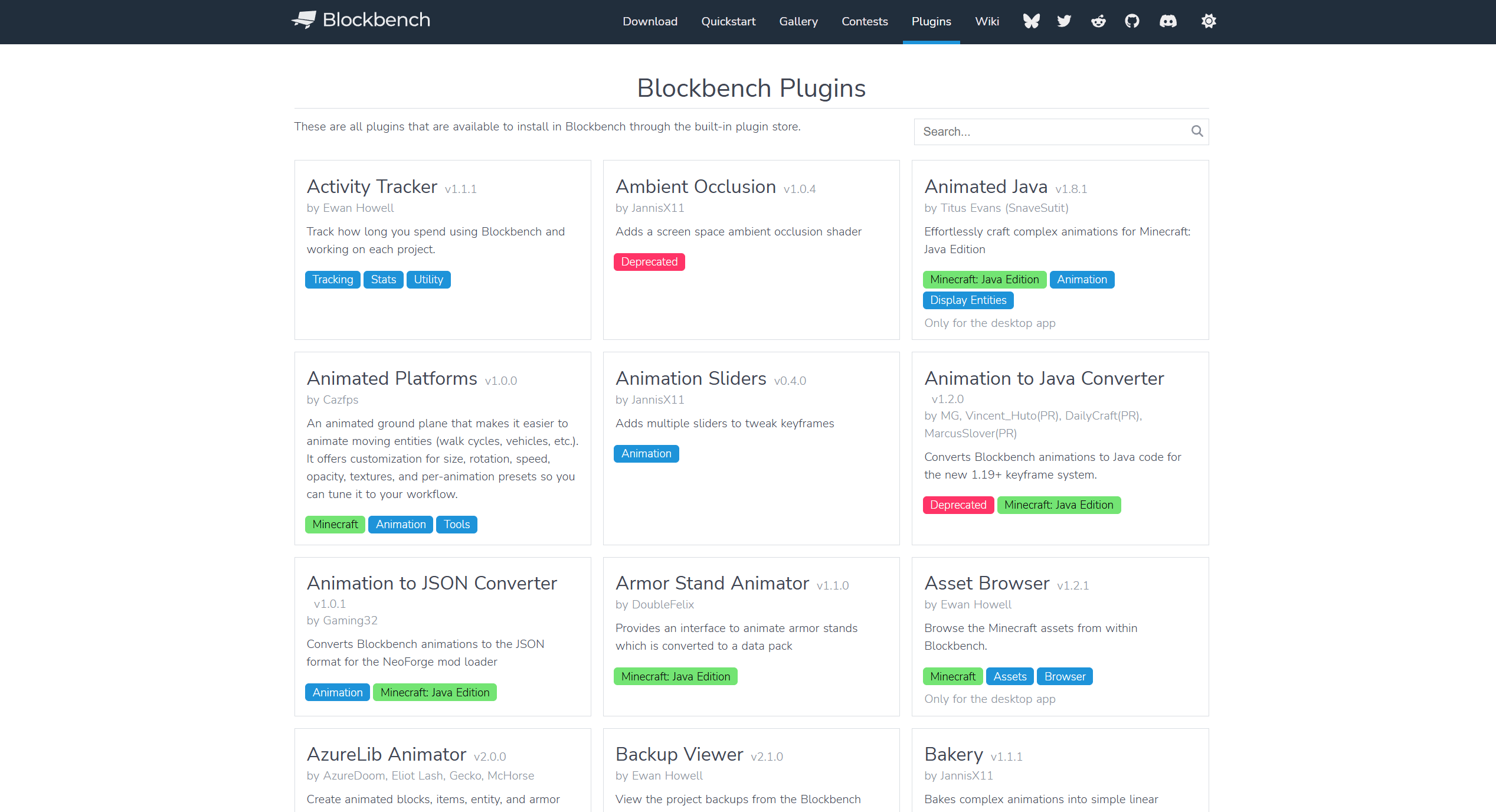
The Hytale Blockbench plugin isn't just a file format converter—it's a comprehensive toolkit specifically tuned for Hytale's technical requirements:
- Automatic format conversion: Exports models as .blockymodel and animations as .blockyanim files
- Pixel density validation: Ensures textures maintain the correct 32px or 64px per unit ratio
- Geometry constraints: Prevents using forbidden shapes like spheres or complex topology
- Bone naming conventions: Helps structure character skeletons correctly for in-game animation compatibility
- Shading mode support: Lets you assign Hytale's material types to different parts of your model
- Real-time validation: Warns you when models violate Hytale's style guidelines
These features save hours of troubleshooting by catching errors during creation rather than after exporting.
Understanding Hytale's Art Style
Creating models that feel native to Hytale requires understanding the game's distinctive visual philosophy. Art Director Thomas Frick describes it as "a modern, stylized voxel game with retro pixel-art textures"—marrying cutting-edge rendering with nostalgic pixel aesthetics.
The Four Pillars of Hytale Art
Every asset in Hytale follows these core principles:
Immersive: Models should feel like they belong in a living, breathing fantasy world. Even stylized elements maintain internal consistency and avoid breaking player immersion.
Fantasy: Lean into magical, whimsical elements. Hytale embraces vibrant colors, exaggerated proportions, and imaginative designs that wouldn't exist in reality.
Stylized: Everything is intentionally simplified and iconic. Characters are chunky and toylike. Blocks have pure, recognizable silhouettes. Nothing aims for photorealism.
Flexible: Assets need to work in multiple contexts—from intimate first-person views to distant third-person perspectives, in various lighting conditions and biomes.
Geometry Rules: Keep It Simple
Hytale's modeling system deliberately restricts you to basic geometric primitives for crucial performance and aesthetic reasons.
Allowed shapes:
- Cubes (standard 6-sided blocks)
- Quads (2-sided planes)
- Triangular prisms
- Pyramids
Strictly forbidden:
- Spheres (the most important rule!)
- Edge loops
- Complex subdivision surfaces
- N-gons with more than 4 sides
This limitation isn't a weakness—it's a design strength that ensures:
- Performance optimization: Hytale renders millions of blocks simultaneously. Every unnecessary triangle impacts frame rates across all player hardware
- Easier unwrapping: Simple geometry automatically generates clean UV maps without manual adjustment
- Animation simplicity: No weight painting or complex rigging required
- Accessibility: Anyone can start modeling without a 3D art degree
When you're starting your first Blockbench Hytale model, remember: your goal isn't to show off technical prowess with complex geometry. Instead, focus on creating instantly recognizable silhouettes using the simplest possible construction. The best Hytale assets look intentional, iconic, and effortlessly cool.
Texture Requirements and Best Practices
Textures in Hytale follow strict mathematical rules ensuring visual consistency across all content.
Texture size constraints:
- Must be multiples of 32 pixels (32×32, 64×64, 96×96, 128×128, etc.)
- Non-square textures are permitted (64×96, 128×64)
- Avoid non-standard sizes—they'll cause distortion or errors
Pixel density standards:
| Asset Type | Density | Usage |
|---|---|---|
| Characters & accessories | 64px per unit | Player models, armor, cosmetics, held items, food |
| Blocks & props | 32px per unit | Environment blocks, furniture, decorations, static objects |
Higher density for characters enables facial expressions, fine details, and better close-up presentation in first-person view. Lower density for environmental objects maintains performance when rendering hundreds of blocks simultaneously.
Critical color guidelines:
Hytale's lighting system requires specific color approaches for optimal results:
- Never use pure white (#FFFFFF) - Breaks the game's lighting calculations
- Never use pure black (#000000) - Creates unnatural shadows
- Add color to shadows - Purple-tinted shadows look more vibrant than gray
- Saturate shadows strategically - Avoid purely desaturated shading
- Test in-game when possible - Colors behave differently under Hytale's lighting
The philosophy treats each texture as an "illustration" rather than a photo-realistic material. You paint shadows, highlights, and ambient occlusion directly into the texture, creating depth through artistic choices rather than complex shader math.
Creating Your First Model in Blockbench
Let's walk through the practical process of building a simple Hytale asset from scratch.
Starting a New Project
- Launch Blockbench and select File → New → Hytale Model
- Name your project something descriptive (like "forest_mushroom" or "iron_sword")
- Set up your workspace: Blockbench defaults to a good layout, but you can customize panels by dragging tabs
Basic Modeling Workflow
Step 1: Block out the silhouette
Start with large cubes defining the overall shape. Don't worry about details yet—focus on getting the proportions and recognizable form established. For a character, this means head, body, arms, and legs as simple boxes.
Step 2: Refine the shape
Add smaller details by subdividing cubes or adding planes. Taper limbs, create fingers, add facial features. Each addition should strengthen the silhouette when viewed from any angle.
Step 3: Add personality through proportion
Hytale characters are deliberately cartoony—heads are oversized (about 1/3 of body height), limbs are chunky, and proportions exaggerated for visual appeal. Don't aim for realistic anatomy.
Common beginner mistakes to avoid:
- Using too many cubes: If removing a cube doesn't change the silhouette, delete it
- Ignoring the "no spheres" rule: Seriously, resist the temptation
- Stretching cubes excessively: Keep within 0.7X-1.3X ratio to avoid obvious pixel distortion
- Starting with details: Always establish the large shapes first
Texturing Your Model
Once your geometry looks good, it's time to add visual interest through texturing.
Setting up for texture painting:
- Generate UV map: Blockbench creates this automatically, but you can refine it manually if needed
- Choose your tool: Paint directly in Blockbench's 3D view or 2D texture editor, or export the template and work in Photoshop, GIMP, Krita, or Procreate
- Start with a base color: Fill the entire model with a mid-tone that captures the material (brown for wood, gray for stone)
Recommended brush setup:
- Hard pencil brush (100% opacity, no pressure): Color blocking, sharp edges, fine details
- Soft brush (pressure-sensitive opacity): Smooth transitions, volume creation, subtle shading
- Opacity pencil (pressure-sensitive): Polish pass, final refinements
Painting technique:
Instead of flat color, treat each surface as a mini-illustration:
- Apply base color layer across the model
- Paint shadows in crevices, under overhangs, where light doesn't reach naturally
- Add highlights on edges, tops of surfaces, areas catching light
- Include ambient occlusion where surfaces meet (corners, joints)
- Add color variation to break up monotony—slight hue shifts, weathering, texture
Remember to add color to your shadows rather than using desaturated grays. A wooden chest might have slightly purple shadows; metal could use cool blue tones.
Animation Fundamentals
The Blockbench animation editor brings static models to life through keyframe animation.
Setting up for animation:
- Ensure proper bone hierarchy: Characters need correctly named bones for in-game compatibility (head, body, left_arm, right_arm, left_leg, right_leg)
- Create new animation: Click the Animation tab, then Add Animation
- Name descriptively: "walk_cycle", "idle_breathing", "attack_swing"
Animation workflow:
- Scrub to frame 0: Set your starting pose
- Select bones you want to animate
- Add keyframe: Press the keyframe button for rotation, position, or scale
- Scrub to next pose frame (typically frame 10 for a one-second animation at 10 FPS)
- Adjust bones to the second pose
- Add keyframes for the new pose
- Repeat for additional poses
- Play to preview: Use the playback controls to see your animation loop
Animation tips for beginners:
- Start with idle animations: Simple breathing or subtle movement teaches the basics
- Reference real movement: Watch videos of how things actually move in real life
- Exaggerate motion: Hytale's cartoony style benefits from over-the-top animation
- Use the graph editor: Fine-tune timing and add ease-in/ease-out for more natural movement
- Test early and often: Play your animation frequently to catch issues
For characters, make sure your animations respect Hytale's chunky, toylike aesthetic. Movements should feel deliberate and slightly bouncy rather than realistic and smooth.
Answering Common Questions from the Hytale Community
"How do I get started with my first Blockbench model for Hytale?"
Many beginners feel overwhelmed looking at complex community creations. The key is starting incredibly simple:
- Make a single decorative block first: Create a simple pot, barrel, or crate using 3-5 cubes
- Focus on texture quality: Spend time learning to paint good pixel art on this simple object
- Gradually increase complexity: Next, try a prop with moving parts (a chest that opens)
- Then attempt a character: Start with a basic enemy mob before tackling player models
Don't compare your first attempts to creators who've been modeling for years. Everyone starts somewhere, and Hytale's simplified geometry rules ensure rapid skill progression.
"Can I import models from other games or software?"
Blockbench supports importing various formats (OBJ, FBX, gLTF), but models designed for other games rarely meet Hytale's strict requirements. You'll typically need to:
- Simplify geometry to only cubes and quads
- Recreate textures at the correct pixel densities
- Rebuild the bone structure with proper naming
It's usually faster to model from scratch than adapt existing assets, especially when learning.
"What's the best way to learn Blockbench quickly?"
The fastest path to competence combines:
- Follow official tutorials: Hypixel Studios' introduction to model making covers all fundamentals
- Study existing models: Import base game assets and examine how they're constructed
- Join the community: Discord servers and Reddit have creators sharing techniques and providing feedback
- Create daily: Make one small asset per day for 30 days to build muscle memory
- Accept imperfection: Your first models will be rough—that's expected and normal
"Do I need artistic skills to use Blockbench for Hytale?"
No formal art training is required. Hytale's style deliberately avoids realism, making it more forgiving than other games. However, understanding basic principles helps:
- Shape language: Read about how different shapes communicate different feelings (round = friendly, angular = aggressive)
- Color theory basics: Learn complementary colors, value contrast, and saturation
- Pixel art fundamentals: Study how pixel artists create depth with limited resolution
These aren't prerequisites—you'll pick them up naturally through practice.
"Can I make money creating Hytale models?"
While Hytale's exact monetization policy for modders is still being finalized, early access suggests several paths:
- Server assets: Sell custom models to server owners through marketplaces
- Commission work: Take paid requests from players wanting unique character models or items
- Asset packs: Bundle related models (furniture set, creature pack) for sale
- Patreon support: Offer exclusive models to supporters
Always respect Hytale's terms of service and intellectual property guidelines when monetizing content.
Advanced Techniques and Optimization
Once comfortable with basics, these strategies improve model quality and performance.
Triangle Count Management
Hytale can render millions of polygons per frame, but that doesn't mean you should use them carelessly. Every triangle impacts performance, especially in dense scenes with many entities.
Optimization checklist:
- Remove hidden faces that players never see (undersides of objects, interior walls)
- Use planes instead of cubes when only one side is visible
- Merge coplanar faces when possible
- Avoid excessive small details that don't read at normal viewing distances
Target polygon counts:
| Asset Type | Ideal Range | Maximum |
|---|---|---|
| Simple blocks | 12-48 triangles | 96 |
| Props/furniture | 48-192 triangles | 384 |
| Basic mobs | 192-384 triangles | 768 |
| Player characters | 384-768 triangles | 1536 |
| Boss creatures | 768-1536 triangles | 3072 |
These are guidelines, not hard limits. Complex creatures justifiably use more geometry than simple blocks.
Creating Modular Assets
Design models that work in multiple contexts:
Modularity principles:
- Separate decorations from base objects (allows mixing and matching)
- Create variants by swapping textures on the same geometry
- Design attachment points where accessories connect to characters
- Build prefab components (doors, windows, roofs) for mix-and-match construction
This approach saves time and maintains consistency across your content library.
Testing Your Models In-Game
Nothing beats seeing your creation running in actual Hytale:
- Export from Blockbench: Use File → Export → Hytale Model
- Place in correct mod folder: Follow Hytale's modding structure documentation
- Load world with mod active
- Spawn your model using creative mode or test commands
- Evaluate under different conditions: Various lighting, distances, angles
Common issues revealed during testing:
- Texture colors looking too dark/bright compared to expectations
- Animation timing feeling too fast/slow
- Silhouette not reading clearly at distance
- Pixels stretching noticeably due to incorrect UV mapping
Tools and Resources Beyond Blockbench
While Blockbench handles most tasks, external software enhances your workflow.
Recommended External Programs
Texture editing:
- Aseprite: Premier pixel art software with animation support
- GIMP: Free Photoshop alternative with powerful tools
- Krita: Digital painting program excellent for texturing
- Paint.NET: Lightweight Windows option for quick edits
Reference and planning:
- PureRef: Organize reference images on an infinite canvas
- Blender: Create concept models before translating to Blockbench geometry
- MagicaVoxel: Alternative voxel editor useful for experimentation
Community Resources
Learning platforms:
- Hytale official documentation on GitBook
- YouTube channels covering Blockbench tutorials
- Hytale modding Discord servers
- Reddit's r/hytale community showcase threads
Asset libraries:
- CurseForge Hytale section (once populated)
- Orbis.place mod hosting
- GitHub repositories of open-source projects
The Future of Blockbench and Hytale
Hypixel Studios continues developing both Hytale and the Blockbench plugin throughout early access. Upcoming improvements include:
- Visual scripting integration: Connect model behaviors directly in Blockbench
- Improved shading mode previews: See how materials look in-game while editing
- Template system: Start new models from preset bases
- Collaborative editing: Multiple creators working on the same model simultaneously
- Automatic optimization: AI-assisted polygon reduction and texture refinement
The partnership between Blockbench's developer (JannisX11) and Hypixel Studios ensures the tool evolves alongside the game, maintaining its position as the definitive modeling solution for Hytale content creation.
Conclusion
Blockbench transforms Hytale modding from an intimidating technical challenge into an accessible creative outlet. Whether you're designing your first simple block or crafting elaborate animated creatures, the combination of Blockbench's intuitive interface and Hytale's clear art guidelines creates an environment where imagination matters more than technical expertise.
Start simple, practice consistently, and engage with the community. Your journey from complete beginner to confident creator happens faster than you'd expect when working with tools specifically designed to empower you. The Hytale world is waiting for your unique contributions—download Blockbench today and start bringing your visions to life.